Templates
Documents → Templates holds your own PDFs, set up once and used again. A template's type decides how it is used:
- A Lease appendix is attached to a lease and signed with it. See Lease appendices.
- Any other type, for example a Guarantor agreement or an Owner agreement, is sent for signing on its own. See Sending a document for signing.
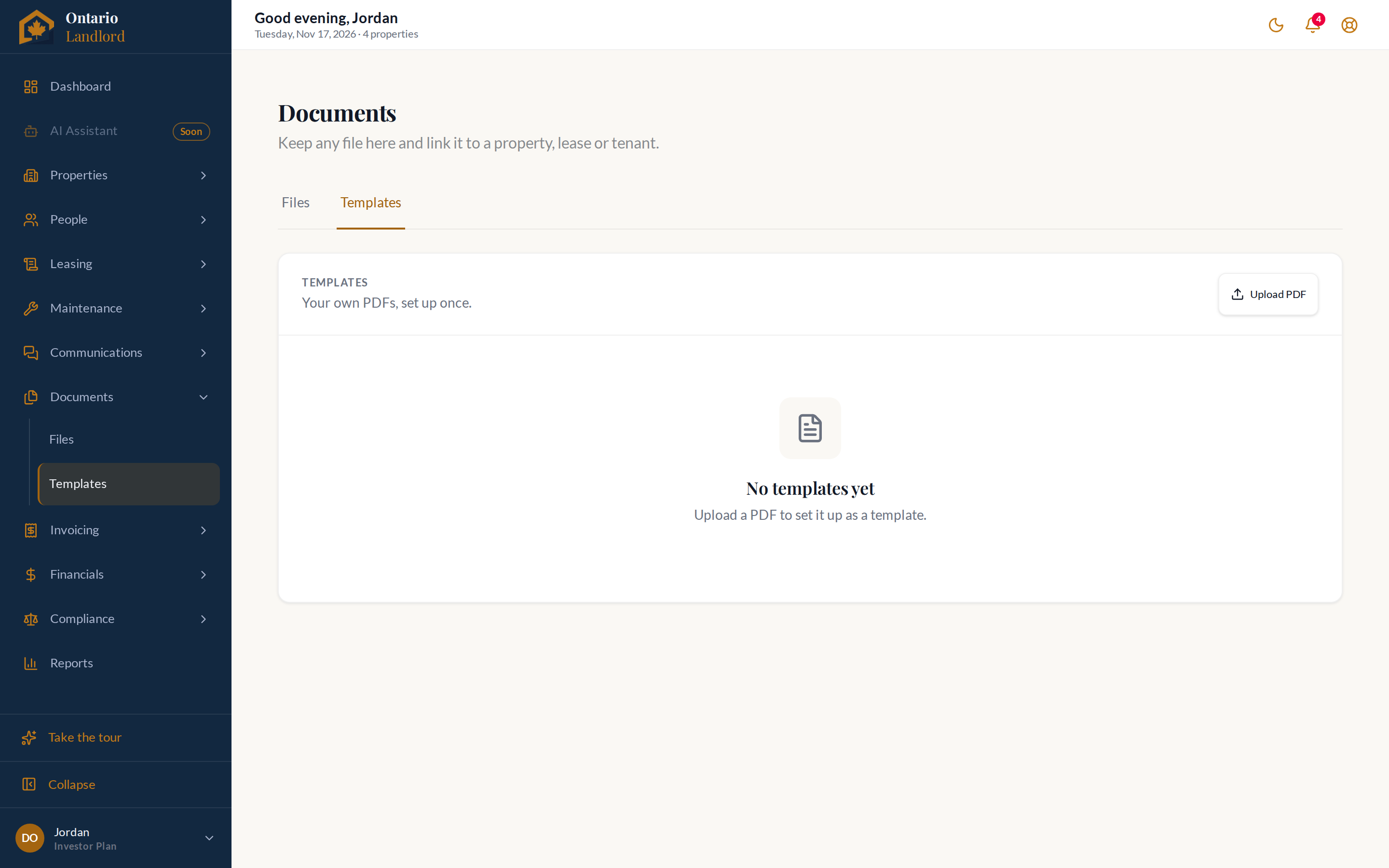
Upload a template
- Go to Documents → Templates.
- Click Upload PDF.
- Drop the PDF in the box, or click it to browse. PDF only, up to 10 MB.
- Check the Title. It starts as the file name, and it is the name you see when you pick an appendix on a lease.
- Pick a Type. It starts as Lease appendix, or Guarantor agreement when the file name mentions a guarantor. Only a lease appendix can be attached to a lease.
- Click Upload.
If the PDF already has form fields, the app reads them, and the template may be ready straight away. If it has none, you see "Uploaded. This PDF has no form fields, so set them up next." and the field editor opens.
Some PDFs are refused, with the reason:
| Message | What to do |
|---|---|
| "This PDF is locked or password-protected. Upload an unlocked copy." | Remove the password and upload again. |
| "This PDF is already signed. Upload an unsigned copy." | Upload the blank version. |
| "This PDF is an XFA form, which can't be filled. Print it to PDF and upload that copy." | Print the form to a new PDF and upload that. |
You can keep up to 50 templates. Remove one to make room for another.
Set up the boxes
Click Set up fields on a template that needs setup, or Continue setup on a draft. The editor opens on your PDF. It is DocuSeal's template editor.
- Place a box wherever something needs filling in or signing. Each change is saved as you make it.
- A Lease appendix takes only boxes to fill in, such as text, checkboxes, dates and choices. Everyone signs the lease itself, so it has no signature boxes.
- Any other type also takes signature, initials and signing-date boxes.
- Each box belongs to a role: the person who fills it in or signs it. A new template starts with one role, called Landlord. Add a role for each other person, for example Tenant or Guarantor. When you send the template, you name one person for each role.
Close the editor when you are done. The app reads your boxes and tells you where the template stands:
| Message | Meaning |
|---|---|
| "Saved. It is ready to use." | The template can be used. |
| "Saved as a draft." | Setup is not finished. A second message says why: a template to send needs at least one box, and a lease appendix needs at least one box to fill in. |
| "Saved. It attaches with nothing to fill in." | A lease appendix with no boxes. It attaches to the lease as it is. |
When a template is ready, the app also makes a copy of the PDF with real form fields, unless the PDF already had them. Download it with Fillable PDF when you view the template's fields.
The template list
Each row shows the type, the number of pages, how far setup has got and the upload date. Default marks your default lease appendix. Needs setup and Draft mark templates that are not ready.
- Click a template's name to view its fields, grouped by page. An Admin can reopen the editor from there with Edit fields.
- Open PDF opens the file you uploaded.
- Send for signing shows on every ready template that is not a lease appendix.
- Mark as default shows on a lease appendix. The default is attached to every new lease you prepare on the Standard Lease Form.
- Rename changes the title and the type.
- Remove takes the template out of the list.
Changing the type
If a template's boxes no longer suit its new type, a ready template goes back to Draft. Changing the type of your default appendix asks first, because it is then no longer added to new leases.
A template whose boxes have roles cannot become a lease appendix. Upload the PDF again with the type Lease appendix instead.
Removing a template
Leases that already use a removed appendix keep it. Editing or removing a template never changes a document you have already sent: each send keeps its own copy.
Who can do what
Everyone in your organization can see the templates, open them, view their fields and send them for signing. Only an Admin can upload, set up, rename, mark as default, remove, and save answers.