Files
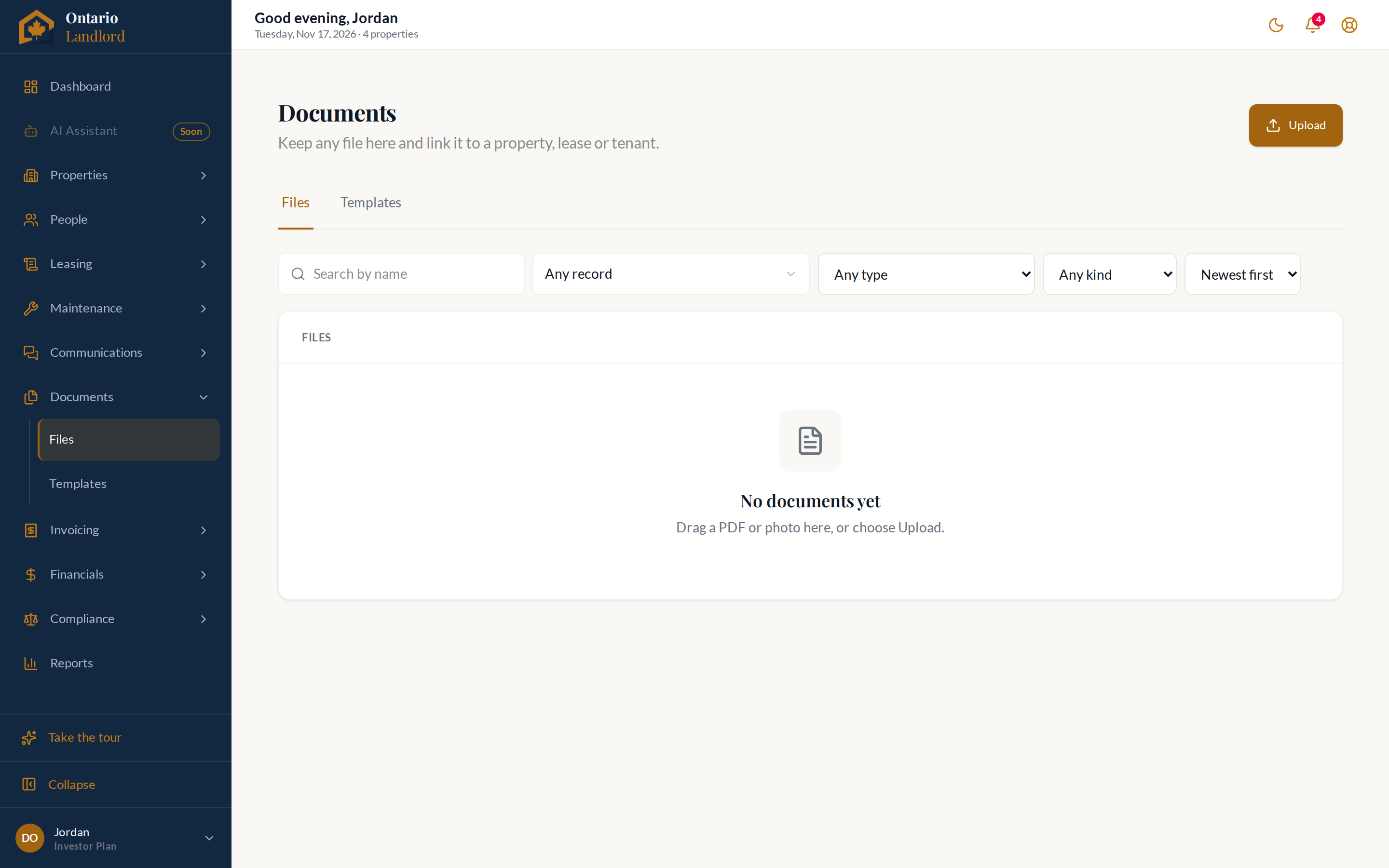
Documents → Files is one place for your files: a guarantor form, an inspection report, an insurance certificate, a receipt. Link each file to a property, a lease, a tenant or an owner, or keep it on its own. Documents you send for signing from a template are listed here too.
Upload a file
- Go to Documents → Files.
- Click Upload, or drag the file onto the page.
- Check the Name. It starts as the file name.
- Pick a Type. The app guesses one from the file name, for example Guarantor agreement for a file called guarantor.pdf.
- Link it if you want: a Property, then Lease (optional) for one of its leases, a Tenant and an Owner. Leave any of them on Not linked.
- Click Upload.
You can upload one file at a time:
- File types: PDF, JPEG, PNG and HEIC.
- Size: up to 25 MB.
- iPhone photos: an HEIC photo is saved as a JPG with the same name.
The types are Lease or addendum, Lease appendix, Guarantor agreement, Notice, Inspection or move-in report, Insurance, ID or application, Owner agreement, Invoice or receipt and Other.
Find a file
- Search by name filters the list as you type.
- The record filter starts on Any record. Pick a property, tenant or owner to see only its files.
- A property also shows the files of its leases.
- A tenant also shows the files of every lease they are on, as the main tenant or a co-tenant.
- An owner shows only the files linked to that owner.
- The type filter starts on Any type. Pick a type to see only those files.
- The kind filter starts on Any kind. Pick Uploaded, Out for signing or Completed. Declined and cancelled sends show only under Any kind.
- The list starts on Newest first. You can also sort by Oldest first, Name or Type.
Your filters stay in the page address, so you can bookmark a filtered list. They also stay when you switch to Templates and back.
From a lease
On a lease's page, click Documents. Files opens filtered to that lease. A file you upload from there is linked to the lease and its property.
While you filter by a property, tenant or owner, an upload is linked to that record too. You can change the link before you click Upload.
Work with a file
Each row shows the type, the date it was added, the size and what it is linked to. The buttons on the right:
- Download, or click the file's name: downloads the file. For a completed send, you get the signed copy.
- Edit: change the name or the type.
- Link: change what the file is linked to, or set every field back to Not linked.
- Archive: removes the file from the list.
- Cancel send: shown instead of Archive while a document is out for signing. See Sending a document for signing.
Deleting a property, lease, tenant or owner also archives the files linked to it.
Who sees a file
Everyone in your organization can open Documents. A file linked to a record is listed only for team members who can see every record it is linked to. A file with no link is listed for everyone.
Only the Enterprise plan has more than one user. See Team management for the roles.
A document sent for signing
A document you send from Templates is added to Files with a status line under its name:
| Status | Meaning |
|---|---|
| Out for signing · 1 of 2 done | Sent. The numbers count the people who have finished. |
| Completed | Everyone has finished. The file is now the signed copy. |
| Declined | Someone declined, so the send is closed. |
| Cancelled | You cancelled the send. |
Click the status line to see each person: their role, name, email and Waiting, Opened, Done or Declined. See Sending a document for signing.