Bank Transactions
Bank Transactions holds every line from your connected banks and the statements you upload. You file each line once: as an expense, as income, as a match to a record you already entered, as a transfer, or as excluded.
To open it, click Financials → Bank Transactions in the sidebar.
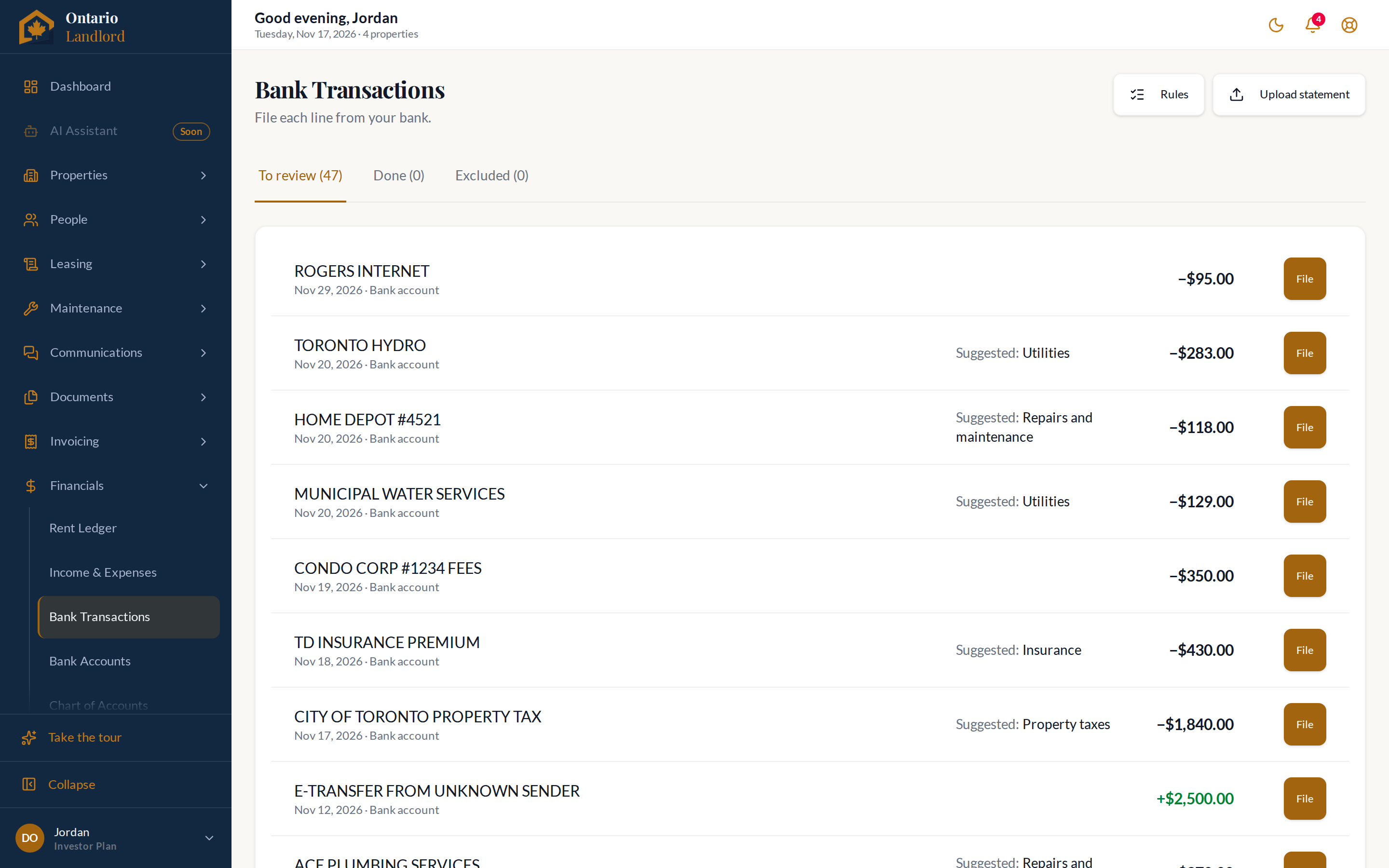
Only an admin can file lines, make rules and upload statements. A property manager can see the lines, but not the File, Rules or Upload statement buttons.
Where the lines come from
- Connected banks: each sync brings the lines your bank posted since the last sync. Pending transactions come in once they post. See Connecting your bank.
- Uploaded statements: see Uploading a bank statement.
Every line starts in To review. Nothing is filed without a click, unless a bank rule set to File automatically matches the line. See Bank rules.
The tabs
| Tab | What it holds |
|---|---|
| To review | Lines you have not filed yet |
| Done | Lines filed as an expense, income, a match or a transfer |
| Excluded | Lines you excluded |
Each tab shows how many lines it holds. Lines are listed newest first, 50 to a page.
Each line shows the payee or the bank's description, the date, the bank account and the amount. Money in has a plus sign. Money out has a minus sign.
Suggestions
In To review, a line can show an account next to it:
- Rule and an account: a bank rule matches the line.
- Suggested: and an account: the account you last picked for the same payee.
- Suggested: for money out from a connected bank with no earlier choice: an expense account picked from your bank's category. Bank fees, insurance, professional fees, tax payments, home improvement, utilities, travel and fuel each point to the expense account on the matching T776 line. Mortgage payments get no suggestion this way.
A suggestion only fills in the File window. You still click Save.
Filing a line
- Click File on the line.
- Under File as, pick one of the choices below.
- Click Save. The app says "Filed." or "Excluded."
Money out
| Choice | What it does |
|---|---|
| Expense | Records an expense in the account you pick |
| Match an expense | Links the line to an expense you already logged |
| Transfer between my accounts | Marks money you moved between your own accounts. Nothing is recorded. |
| Exclude | Moves the line to Excluded. Nothing is recorded. |
Money in
| Choice | What it does |
|---|---|
| Income or deposit | Files the line into an income, liability or equity account |
| Match a payment | Links the line to a payment already recorded on a lease |
| Transfer between my accounts | Marks money you moved between your own accounts. Nothing is recorded. |
| Exclude | Moves the line to Excluded. Nothing is recorded. |
Expense
Fill in:
- Account: your expense accounts first, then the Not on the T776 group, such as Mortgage principal or Capital purchases (CCA).
- Property: the property the expense is for, or General / Overhead.
- Payee: filled in from the bank line. You can change it.
- Memo: optional.
Saving creates the expense in Financials → Income & Expenses, with the line's date and amount. See Expense tracking.
An expense left on General / Overhead is not on the T776. Pick a property for every rental expense you want on your T776.
Income or deposit
Fill in Account, Property and Memo. The Account list shows your income accounts, then the Not on the T776 group, such as Last month's rent deposit or Owner contributions and draws.
The Rent account is not in the list. The window says "To record rent, enter the payment on the lease, then match it here." See Matching rent and expenses.
A line filed as income stays a bank line. It is not a payment, so it does not count in Income & Expenses or on the T776.
Match an expense or a payment
The choice shows how many records fit, for example Match a payment (1). A record fits when it has the same amount, is dated within 7 days of the line, and no other bank line is linked to it. Pick the record and click Save.
If nothing fits, the window says so, for example "No payment of $1,850.00 within 7 days."
A payment on a lease managed in Buildium cannot be matched.
The Done tab
Each filed line shows what it became:
- the account name, for an expense or income
- Transfer
- Matched to an expense or Matched to a payment
A line filed by a rule also shows Auto. A line you filed into an account yourself shows Make a rule. It opens a new bank rule filled in from the line.
Undo
Click Undo on a line in Done or Excluded to put it back in To review. The app says "Moved back to To review."
- An expense the line created is deleted.
- A match is removed. The expense or payment you matched stays.
If an expense or payment that a line is linked to is deleted, that line also goes back to To review.
Changes from your bank
Your bank can change or remove a line after it posts.
- A line still in To review is updated. If the bank removes it, it disappears.
- A filed line keeps its filing. It shows Changed by your bank when the bank changes its amount, date or direction. It shows Removed by your bank when the bank removes it. Check the line, and use Undo if it needs filing again.
No lines yet
With no bank connected and no statement uploaded, To review says "Connect a bank, or upload a statement." Click Connect a bank to go to Bank Accounts.
While a DoorLoop integration is active, filing, rules and statement uploads are refused with "Rent data is managed by DoorLoop." See Plaid overview.